Host an HTML page in Microsoft Teams? Two routes still work.
Uploading an .html file to a Teams channel gets you a download, not a page. And the advice you will find in most guides, "just add a Website tab", quietly stopped being true in July 2024, when Microsoft turned that tab into a link that opens the browser. You can still give your team a working page in a couple of minutes. You just need to know which route does what.
Updated August 2026. Tested on a Microsoft 365 Business tenant.
Host my HTML page →01 Why Teams won't show your HTML file
The Files tab in every Teams channel is a SharePoint document library underneath. So an .html file uploaded to Teams inherits SharePoint's rules:
- HTML files download instead of displaying. SharePoint Online hands
.htmlfiles to the browser as downloads, as a security measure. Clicking the file in Teams saves it rather than rendering the page. - Custom scripts are blocked. Even where a preview appears, your page's JavaScript will not run, so an interactive page is dead on arrival.
The full story of why SharePoint behaves this way, including the rename-to-.aspx trick and why it stops working, is in our SharePoint guide. This page covers the current Microsoft Teams client with Microsoft 365; on-premises setups behave differently.
02 What changed in July 2024
The Website tab used to render a site inside Teams, in a frame. Since July 2024 it opens the URL in a new browser tab instead. Microsoft made the change for web security reasons, applied it to existing Website tabs as well, and offers no setting that restores the old behavior.
That is why so many tutorials are now wrong, and why a tab that rendered inside Teams for years suddenly kicks people out to the browser. The Website tab is still useful as a pinned link the whole channel can reach. It is just no longer an embed. If the page has to appear inside the Teams window, the route goes through SharePoint, covered below.

03 The routes, and how far they get
| Route | Does it work? | The catch |
|---|---|---|
Upload .html to the Files tab | No | The channel's files live in SharePoint, so the file downloads instead of rendering. |
| Paste the link in a chat or channel | Partly | Works as a link with a preview card. The page opens in the browser. |
| Website tab | Partly | Pins the page for the whole channel, but since July 2024 it opens in a new browser tab, not inside Teams. On the upside, there is nothing to allow-list. |
| SharePoint page with the Embed web part, added as a tab | Yes | Renders inside Teams. A site admin has to allow the embedded host once, the same allow-list step as in our SharePoint guide. |
| Custom Teams app (SPFx or the Developer Portal) | Yes | The supported route for real apps. It means a developer toolchain plus an admin deployment, which is heavy for one HTML page. |
04 The fix: host the page, then pick your route
Either way, the first step is the same: get the HTML onto a host whose job is to serve it.
Publish the HTML file
Drop your .html file on yapp.page. If it has CSS, images or JavaScript, drop the whole folder or a ZIP with index.html at the root. You get a live https URL like yourname.yapp.page in about two seconds, with the scripts intact.
Route A, the fast one: pin it as a Website tab
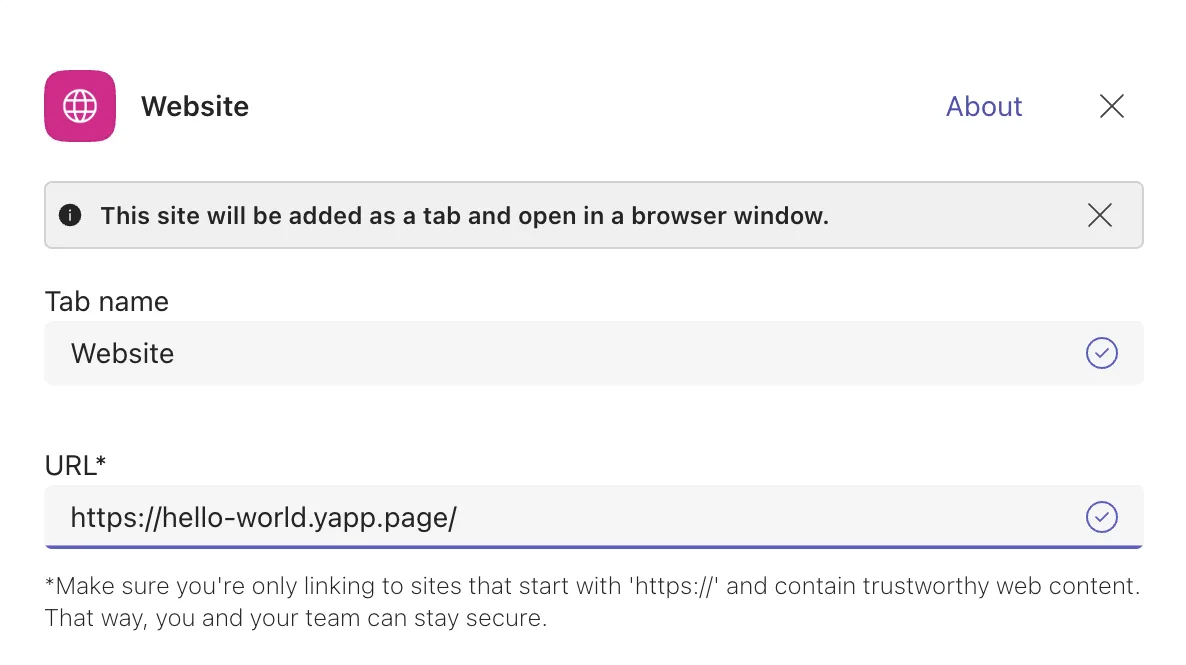
In the channel, select the + at the top, choose Website, give the tab a name people will recognize, and paste your page's URL. Everyone in the channel now has the page one click away. It opens in their browser rather than inside the Teams window.
Nothing needs to be allow-listed and no admin has to approve the domain. For most internal pages, a handbook, a dashboard, a report, this is all you need.
Route B, the embedded one: through a SharePoint page
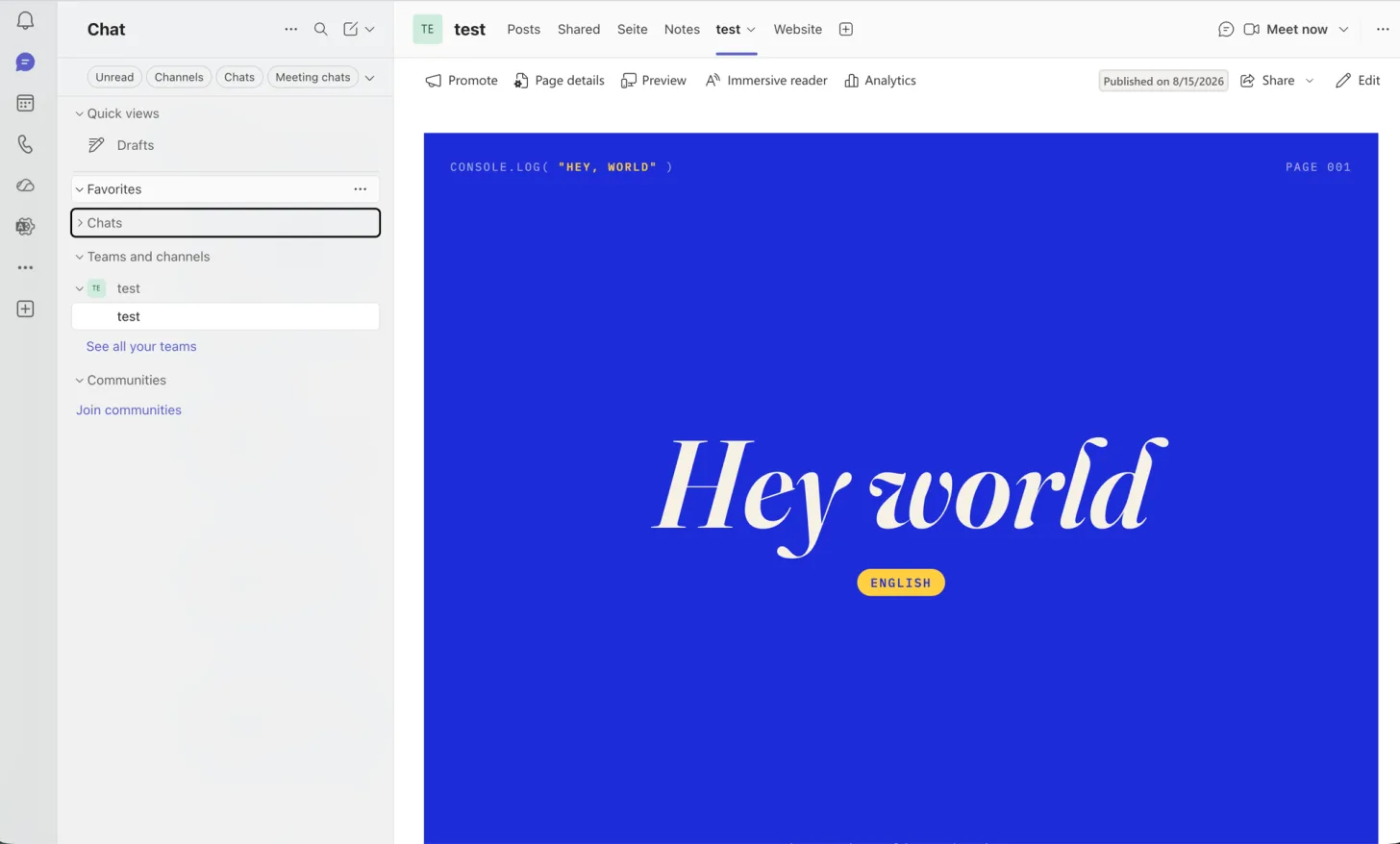
If the page has to render inside Teams, use the team's SharePoint site as the bridge. Create a page there, add the Embed web part, and paste your page's URL. The first time, SharePoint will ask a site admin to allow the host under HTML field security; the exact clicks are in our SharePoint guide. Then, back in Teams, add a tab with the +, choose SharePoint, and pick the page you just made. The page now shows inside the tab.
Update without touching Teams again
When the content changes, update the page on yapp.page. The URL stays the same, so the tab, the embed, and every shared link keep showing the latest version. Nobody re-uploads anything into the channel.
05 The caveats worth knowing
- The Website app can be blocked. A Teams administrator can turn off the Website app in the Teams admin center. If Website does not appear when you add a tab, that is why. It is an app-level switch, not a per-domain list.
- Password-protected pages behave differently per route. On a Website tab the page opens in the browser as a normal visit, so the password screen works as usual. Embedded through a SharePoint page, the browser can block the unlock cookie inside the frame. For that route, open Manage on the protected page in My pages Contact and generate an embed link, then embed that URL. Visitors on the plain link still need the password.
- https only. Teams refuses plain http URLs in a Website tab. Every yapp.page URL is https, so this takes care of itself.
06 What your security team will ask
Putting work content on an outside host is a fair question to raise. Straight answers:
- Does it touch our Microsoft 365 tenant? No. The page lives outside your tenant, and Teams only links to it or shows it in a tab. There is no app to install, no permissions to grant, and no access to your Teams or Microsoft 365 data.
- Who can open the page? Anyone with the link, unless the page has a password. The address is not guessable, but it is not a permission system either, so treat an open page like a file shared with "anyone with the link". With a password set, the page is private: only people who have the password can open it.
- Is it visible to search engines? Pages are not blocked from crawlers, so treat a published page as publicly reachable. Do not put anything on it you would not put on your public website.
- Where does it run? Pages are stored in Hetzner data centres in Germany, run by Reamber GmbH, and delivered through a global CDN with more than 300 locations, so the page loads fast worldwide. There is a data processing agreement and a privacy policy your team can read before approving anything.
- Can I lock it down? Paid plans can put a password on a page. See the caveats above for how that plays with each route.
- Will it carry someone's branding? Free pages show a small "Made with yapp.page" badge, which everyone who opens the page sees. Paid plans remove it.
07 How long the link lives, and what it costs
Worth knowing before you pin a URL that a whole team will use for months.
| No account | Free account | Paid | |
|---|---|---|---|
| Link stays live | 30 minutes | 30 days | Never expires |
| Pages | Trial only | 5 | 20 and up |
| Size per page | 5 MB | 5 MB | 50 MB |
| Password protection | No | No | Yes |
| Your own domain | No | No | Yes |
| "Made with yapp.page" badge | Shown | Shown | Removed |
The 30 minute trial is there so you can check that your page renders before signing up. It is not the right link to pin as a tab. Sign in first, and if the tab is going to sit in a channel for a year, a plan that never expires is the honest choice. See plans →
08 Frequently asked questions
Can Microsoft Teams host an HTML file?
No. Files uploaded to a channel live in the team's SharePoint library, and SharePoint downloads .html files instead of rendering them. Host the page elsewhere, then pin the URL as a tab.
Why does my HTML file download instead of opening in Teams?
The Files tab is a SharePoint document library underneath, and SharePoint Online serves .html files as downloads as a security measure. No Teams setting changes this.
Why does my Website tab open in the browser instead of inside Teams?
Microsoft changed the Website tab in July 2024. It now opens the URL in a new browser tab rather than rendering the site in a frame, existing tabs included, and there is no setting to restore the old behavior.
How do I show a web page inside Microsoft Teams?
Create a page on the team's SharePoint site, add the Embed web part with your hosted page's URL, and add that SharePoint page to the channel as a tab. A site admin has to allow the embedded host once.
Does the Website tab need admin approval?
There is no per-domain allow-list, so in most organizations it needs no approval at all. An admin can block the Website app itself; if it does not appear when you add a tab, that is why.
Can I use a password-protected page in Teams?
With a Website tab, yes: the page opens in the browser and the password screen works as usual. Embedded through a SharePoint page, use an embed link generated from the page's Manage panel so the frame renders without prompting.
Related
Host an HTML file on SharePoint →
Host an HTML file online, free →
How to share an HTML file as a link →
Host an HTML file on Google Drive →
A simpler GitHub Pages alternative →
Free static website hosting →
How to publish an HTML website →
Share a PDF online, free →
Set up yapp.page with your AI client →